


Scroll to learn more
Starting November 1, 2026, Alberta, British Columbia, Manitoba, and the Northwest Territories will no longer change their clocks twice a year, adopting permanent daylight saving time.
While this change simplifies timekeeping, it may require adjustments to your ATRIUM access control system to ensure everything continues running on schedule.
To prevent unwanted time changes, review and adjust your ATRIUM system’s time settings using the instructions below.
Before you begin: Make sure you have the standard, advanced, or expert user level in your ATRIUM system.
Log in to your ATRIUM controller through its web interface.
Navigate to: Hardware → Control Panel → Date and Time Setting
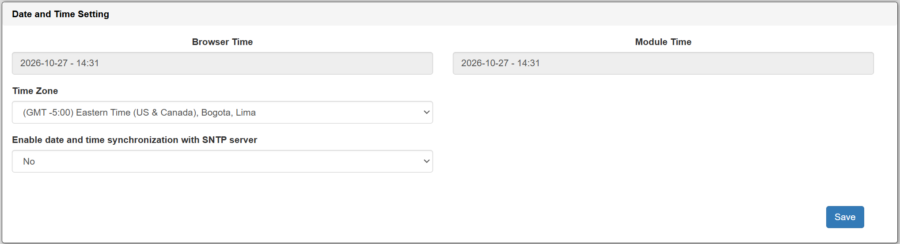
Verify that the Master controller (or any sub-controllers that could be in a different time zone) is configured for your location’s correct year-round UTC offset.
For locations adopting permanent daylight saving time, follow the table below to adjust your ATRIUM system:
| Province / Territory | Current UTC | New UTC |
| Northwest Territories | GMT−9 | GMT−8 |
| British Columbia (most areas) | GMT−8 | GMT−7 |
| Alberta | GMT−7 | GMT−6 |
| Manitoba | GMT−6 | GMT−5 |
| Ontario Specific Cities: – Kenora – Dryden – Fort Frances – Sioux Lookout – Red Lake |
GMT−5 | GMT−4 |
Navigate to the Daylight Saving Time menu. Put a fixed date for the starting & end date and set the offset (HH:MM) to 0:0.

Save your changes and confirm that the controller displays the correct local date and time.
We also recommend checking your access schedules to ensure they continue operating as expected.
